1. GETTING STARTED
Installation
- Open Blender and go to Edit > Preferences > Add-ons.
- Click Install... and select the
Forge_v1.zip file.
- Check the box next to Forge to enable the add-on.
Entering Forge Mode
Forge operates as a fully dedicated workspace, much like Edit Mode.
- To begin modeling, select an object (or start fresh) and enter Forge Mode from the top-left mode dropdown (or via your assigned hotkey).
- You are now in the Forge CAD environment, with access to a completely custom toolbar and HUD.
2. SKETCHING (2D TOOLS)
Every great CAD model starts with a precise 2D profile. Forge provides engineering-grade sketching tools.
 Line
Line
Draw straight, precise engineering boundaries.
- Usage: Click to place points. The HUD allows for exact numeric input for lengths and angles.
 Spline
Draw smooth, continuous curves.
- Usage: Click to place control points. Splines are perfect for guiding complex lofts and sweeps.
 Trim &
  Split
Split
Clean up your sketches with pinpoint accuracy.
- Trim: Click any intersecting sketch segment to remove the excess piece.
- Split: Click any curve to break it into two independent edges at that exact point.
3. MODELING (3D TOOLS)
Primitives (Cylinder & Sphere)
Quickly drop foundational shapes into your scene.
- Adjust the radius and depth parametrically through the HUD immediately after placement.
 Boolean
Perform live cuts, unions, and intersections.
- Usage: Select a target body, select a cutter body, and choose your boolean operation. Forge provides a real-time "ghost" preview of the cut before you commit.
 Fillet & Chamfer
Create mathematically flawless surface blends and precise angled bevels that standard polygons cannot achieve.
- Usage: Select an edge (or multiple edges) and drag the gizmo or enter a precise radius in the HUD.
 Revolve
Spin a 2D profile around a central axis to generate symmetrical, cylindrical parts.
- Usage: Select a profile, select an axis of revolution, and specify the angle (up to 360 degrees).
 Sweep & Pipe
Generate tubular forms and complex extrusions.
- Pipe: Instantly create hollow or solid tubes along any sketched trajectory by specifying a radius.
- Sweep: Extrude a custom 2D profile along a 3D path.
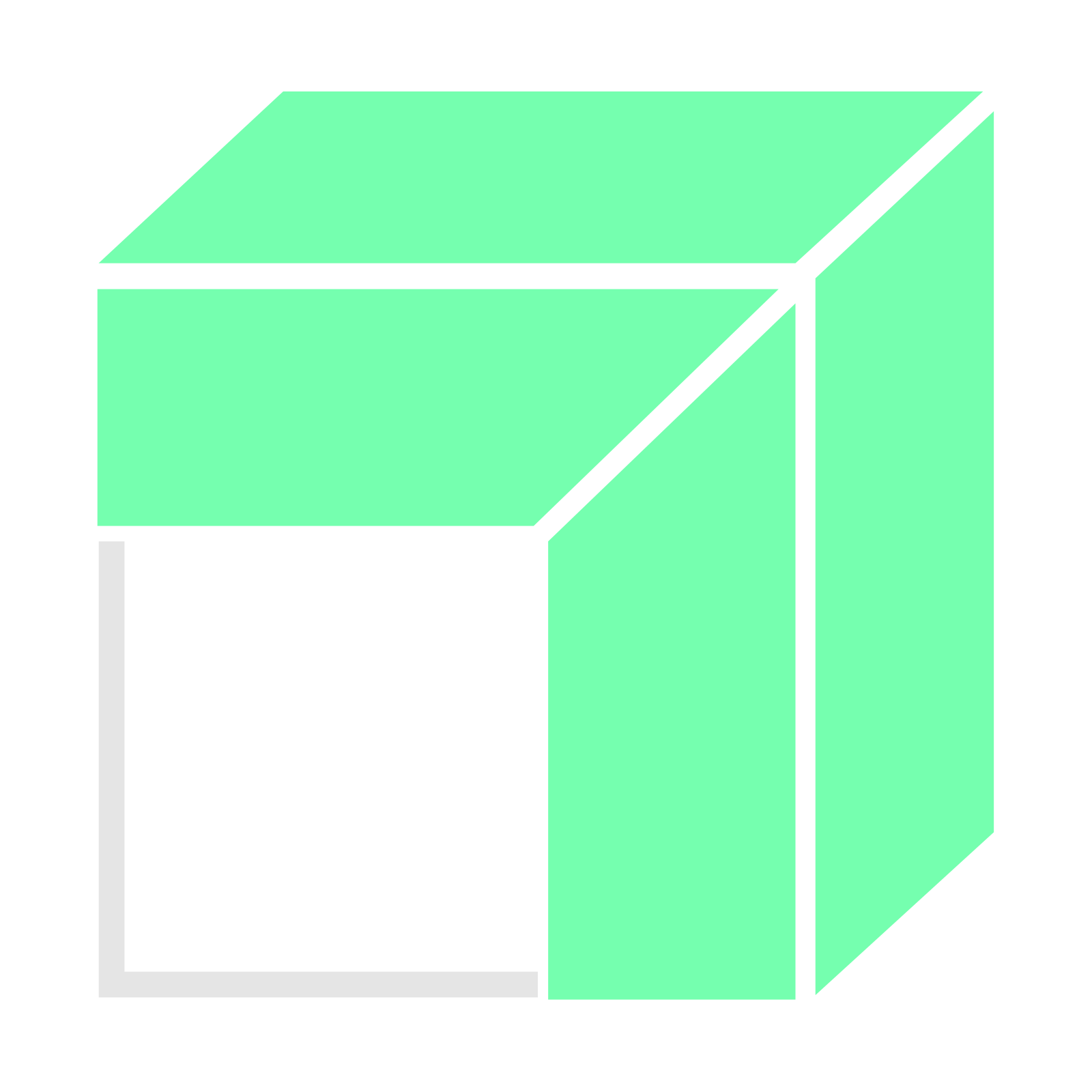 Loft
Loft
Generate transitional solid bodies that flow seamlessly between multiple 2D profiles.
- Usage: Select two or more profiles in sequence to build a smooth connecting body.
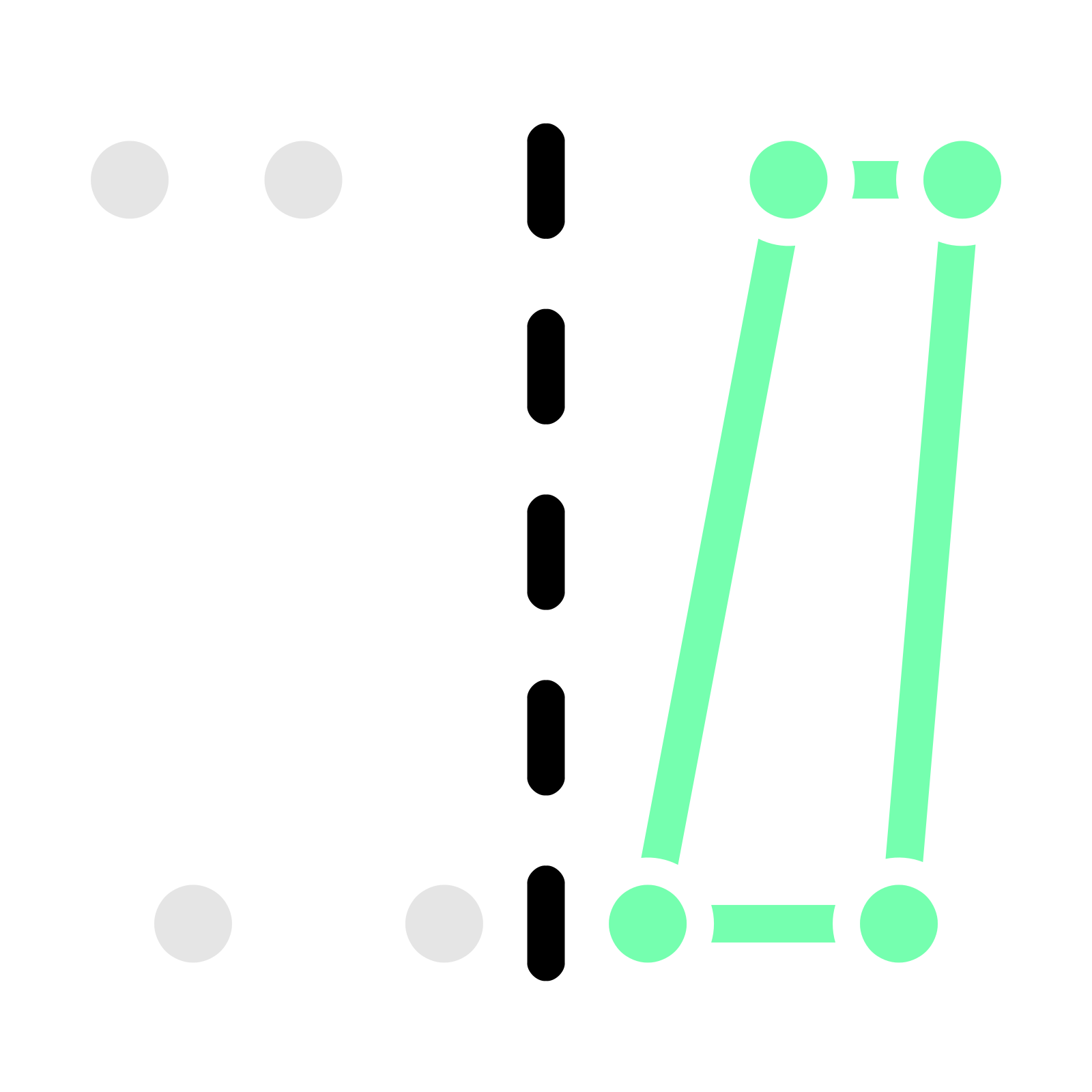 Mirror
Reflect sketches and solid bodies across any axis.
- Auto-fusing ensures that bodies mirroring across the center plane join seamlessly into a single solid.
Cut (Solid Splitting)
Slice solid bodies cleanly into separate components.
- Usage: Draw a line completely across a solid body. Forge will split the body along that plane into two independent pieces.
4. ADVANCED WORKFLOWS & OUTPUT
Performance Mode
Don't have a high-end workstation? Forge has you covered.
- Toggle Performance Mode in the UI to dynamically lower the Viewport Curve Quality. This keeps your viewport incredibly fast without affecting the actual underlying mathematical precision of your model.
Auto-Retopology
When your CAD design is ready for standard Blender workflows (like texturing or rendering), you don't have to manually retopologize.
- Click the Remesh button to instantly convert your CAD geometry into a clean, animation-ready Blender mesh.
Universal I/O
Collaborate with traditional engineering software effortlessly.
- Forge supports flawless import and export of STEP, IGES, and BREP files directly from your Blender viewport.
5. ADDITIONAL TOOLS OVERVIEW
Forge includes many more parametric tools built for heavy-duty design:
- Extrude: Push/pull faces and profiles.
- Offset & Inset: Create parallel boundaries.
- Imprint: Project sketches onto solid faces to create new cut boundaries.
- Shell & Thicken: Hollow out bodies or add thickness to surfaces.
- Array: Duplicate bodies in linear or radial patterns.
*Documentation is continuously updated as new tools are added. Join our Discord to request tutorials on specific features!*
6. COMPLETE TOOL & SHORTCUT REFERENCE
Here is a comprehensive list of all operations available in Forge V1.0, what they do, and their assigned keyboard shortcuts (designed to align with standard CAD conventions without breaking core Blender hotkeys):
Base Primitive Tools
- Box (B): Instantly generate a foundational solid box. You can adjust the dimensions immediately via the HUD.
- Cylinder (C): Generate a cylindrical base shape with full parametric control over radius and depth.
- Sphere (Shift+S): Drop perfect spheres into your scene for base meshes or complex boolean subtractions.
Transformation Tools (The Gizmo)
- Move / Translate (G): Move solids or sketch points in 3D space.
- Rotate (R): Spin solids or sketches around the active axis.
- Scale (S): Uniformly or non-uniformly scale geometry.
Core Modeling & Booleans
- Boolean (Ctrl+B): Perform live cuts, unions, and intersections between bodies with a real-time ghost preview.
- Fillet (Shift+B): Create mathematically flawless, smooth surface blends along edges.
- Chamfer: Create precise, angled, flat bevels along edges.
- Hollow (U): Hollow out a solid object.
- Shell (Shift+U): Add thickness to a flat surface (shelling).
- Mirror: Reflect sketches and solid bodies across a specific axis or plane, automatically fusing intersecting halves.
- Imprint: Project sketch curves onto solid faces to create new edges or cut boundaries.
- Array (Y / Shift+Y): Duplicate bodies in linear (Y) or radial (Shift+Y) patterns.
Advanced Generative Tools
- Sweep: Extrude a custom 2D profile seamlessly along a 3D spline or path.
- Pipe (Shift+P): Instantly generate hollow or solid tubes by sweeping a circular profile along any trajectory.
- Loft: Generate transitional solid bodies that flow and blend seamlessly between multiple 2D profiles.
- Revolve: Spin a 2D profile around a central axis to calculate perfectly symmetrical, cylindrical parts.
- Cut (Solid Splitting): Slice a solid body cleanly into separate components by drawing a straight line across it.
- Bridge: Connect two edges or profiles with a smooth, continuous surface.
2D Sketching Suite
- Line: Draw straight engineering boundaries. Supports exact numeric input for lengths and angles via the HUD.
- Spline: Draw smooth, continuous, free-form curves using control points.
- Circle: Draw perfect circles from a center point.
- Rectangle / Plane: Draw precise 2D planar rectangles.
- Arc: Draw specific arcs defined by 3 points or a center point.
- Polygon: Draw multi-sided, uniform geometric shapes (e.g., hexagons).
- Trim: Remove excess sketch lines or overlapping segments. Click any intersecting segment to delete it.
- Split Edge: Break a single continuous curve into two independent edges at an exact point.
Selection Modes
- Solid Mode (1): Select entire solid bodies or full sketches at once.
- Edge Mode (2): Select individual boundary edges, curves, or line segments.
- Face Mode (3): Select individual faces or surfaces on a solid body.